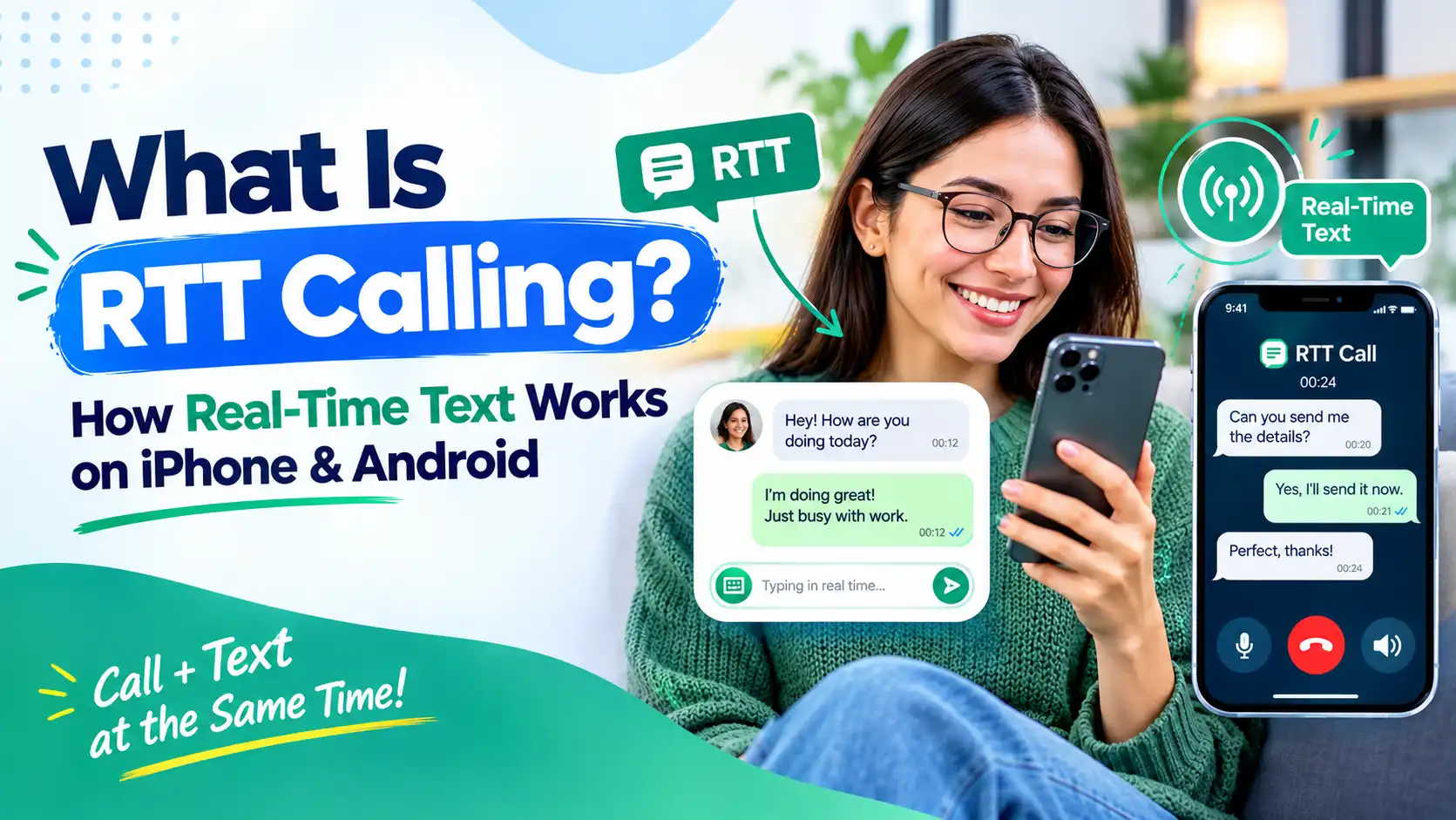
What Is RTT Calling? How Real-Time Text Works on iPhone & Android
If you’ve ever spotted “RTT” sitting quietly inside your phone’s Accessibility settings and wondered what it actually does, you’re not alone. Most people scroll right past it. But for millions of callers who are deaf, hard of hearing, or have a speech disability, RTT is one of the most useful features built into a modern smartphone.
I’ve spent a good chunk of my career writing about VoIP and business communication tools, and RTT is one of those features that gets mentioned constantly in compliance and accessibility discussions but rarely gets explained in plain language. So let’s fix that.
This guide walks through what RTT calling actually is, how it works under the hood, who it helps, and exactly how to turn it on for both iPhone and Android.
What Is RTT Calling?
RTT stands for Real-Time Text. It’s a calling feature that lets you type your side of a phone call instead of speaking it, and your words show up on the other person’s screen letter by letter, as you type them.
That last part is the key difference between RTT and regular texting. With SMS or iMessage, you type a full message, hit send, and the other person sees it appear all at once. With RTT, there’s no “send” button in the traditional sense. Every character you press travels to the other person almost instantly, the same way your voice would during a normal call.
RTT is built directly into the Phone app on both iPhone and Android. You don’t need any extra hardware, apps, or accessories. RTT does the same job over your regular cellular or Wi-Fi calling connection, without the extra box.
How Does RTT Calling Work?
RTT sounds technical, but using it is simple once you understand the flow. Here’s what actually happens during an RTT call, step by step.
1. Start or Receive an RTT Call
An RTT call begins the same way any phone call does — you dial a number, or someone calls you.
The difference is that once the feature is turned on, your phone offers you the option to connect as an RTT call.
On iPhone, this shows up as an “RTT/TTY” option when you’re placing the call.
On Android, it typically appears in the call screen once RTT is enabled in your Phone app’s settings.
2. Open the RTT Interface
Once the call connects, your phone replaces the usual voice call screen with a text box. This is where the real-time conversation actually happens.
3. Type Your Message
As soon as you press a key, that character is transmitted to the other caller — not after you finish the sentence, not after you hit send. If you have “Send Immediately” turned on the other person watches your words appear in real time, including typos and corrections.
If you’d rather send complete thoughts at once, you can turn this setting off and use a Send button instead.
4. Recipient Sees the Text in Real Time
On the other end, the recipient’s screen updates live. This mirrors how a spoken conversation actually flows — with pauses, interruptions, and back-and-forth — rather than the stop-start rhythm of regular texting, where you wait for a full message before responding.
5. Use Text and Audio Together
A big advantage RTT has over old-school TTY is that it doesn’t force an all-or-nothing choice between voice and text.
During an RTT call, audio can still be transmitted alongside the text. So a hard-of-hearing caller might type their side of the conversation while still listening to the other person.
Both people can mute or unmute audio as needed, making the call genuinely flexible rather than locked into one mode.
What Is RTT Used For?
RTT was built as an accessibility feature first, and that’s still its main purpose. But its usefulness extends further than most people realize.
i. Accessibility for Deaf and Hard-of-Hearing Users
This is RTT’s core use case. Someone who can’t hear well enough to follow a spoken conversation can still make and receive phone calls independently. That matters for everything from calling a doctor’s office to speaking with a bank, where automated phone trees and hold music make text-based alternatives especially valuable.
ii. People With Speech Disabilities
RTT works both ways. If speaking clearly is difficult — due to a stutter, a condition affecting speech, or a temporary injury — a caller can type their responses instead of forcing spoken words out under pressure. The person on the other end reads along in real time, so the conversation still feels immediate rather than delayed.
iii. Communication in Noisy Environments
You don’t need a disability to find this useful. If you’re on a factory floor, at a concert, or standing next to a jackhammer, voice calls can be nearly impossible. RTT lets the conversation continue over text without either person needing to shout or repeat themselves.
iv. Situations Where Speaking Is Difficult
Think about a call taken in a quiet library, a meeting room, a hospital, or late at night next to a sleeping partner. RTT lets someone keep a call going without saying a word out loud, which regular voice calling simply can’t offer.
v. Emergency Communication
This is arguably RTT’s most important use case. In the United States, RTT calls can be placed directly to 911 in areas where the local emergency call center supports it, letting someone who can’t speak or hear communicate directly with a dispatcher without needing a relay service in the middle.
How to Use RTT Calling on iPhone?
RTT has been built into iPhone since iOS 10, but it’s turned off by default. Here’s how to switch it on:
- Open the Settings app.
- Tap Accessibility.
- Tap RTT/TTY (depending on your carrier, you might just see “RTT” or “TTY”).
- Turn on the toggle for Software RTT/TTY.
- If you’re on a Dual SIM iPhone, choose which line RTT should apply to.
- Optionally, tap Relay Number to set a number for relay calls, and turn on Send Immediately if you want each character sent the moment you type it, rather than waiting for a full message.
- If you want every incoming call to open as an RTT/TTY call automatically, turn on Answer All Calls as RTT/TTY. Keep in mind this means you’ll stop receiving calls as regular voice calls, so only enable it if that’s genuinely what you want.
Once it’s on, you’ll see a small RTT icon appear in your status bar. To place a call, open the Phone app, select a contact, and choose the RTT/TTY or RTT/TTY Relay option when calling.
RTT calls on iPhone also work through FaceTime on a Mac, once your iPhone is set up and both devices are signed into the same Apple ID.
How to Use RTT Calling on Android?
The steps are broadly similar on Android, though the exact menu names can shift slightly depending on your phone’s manufacturer (Samsung, Pixel, and others each style their settings a little differently):
- Open your Phone app.
- Tap the three-dot menu (or go to Settings within the app).
- Look for Accessibility or Hearing aid settings.
- Tap Real-time text (RTT) call.
- Choose your visibility preference: Always visible shows the RTT option every time you open the dialer, while Visible during calls only shows it once you’re already on a call.
With RTT visible, you can either start a new call directly as an RTT call, or switch a normal voice call over to RTT mid-conversation by tapping the RTT icon on the call screen.
One thing worth noting: some Android carriers automatically support incoming RTT calls even if you haven’t manually turned the feature on, so you may already be reachable by RTT without realizing it.
FAQs on RTT Calling
Q1. Is RTT the same as texting?
No. RTT sends your words character by character as you type them, mimicking the live back-and-forth of a spoken phone call rather than a delayed message exchange.
Q2. Do RTT calls require Wi-Fi?
Not necessarily. RTT typically runs over your carrier’s standard cellular network, the same way a normal voice call does, though it can also work over Wi-Fi calling if your carrier and device support that.
Q3. Are my calls being monitored?
No, not by the RTT feature itself. RTT transmits text directly between the two people on the call, the same way voice audio does on a standard phone call — it isn’t recorded or reviewed by your carrier or device maker as part of how the feature works.
Final Words
RTT calling is one of those features that quietly makes phones more usable for a huge range of people, whether that’s someone who’s deaf or hard of hearing, someone managing a speech disability, or just someone stuck in a loud room who needs to finish a call without shouting. It’s built into every modern iPhone and most Android devices, it costs nothing extra to turn on, and it takes less than a minute to set up.
If you’ve never tried it, it’s worth switching on even if you don’t think you need it. You never know when a noisy environment, a scratchy throat, or a moment where you simply can’t speak out loud will make a text-based call the easier option.
And if you know someone who’s deaf or hard of hearing, showing them how to enable RTT could genuinely change how independently they’re able to use their phone.
Read More : How to Block Private Numbers on iPhone and Android (2026 Guide)