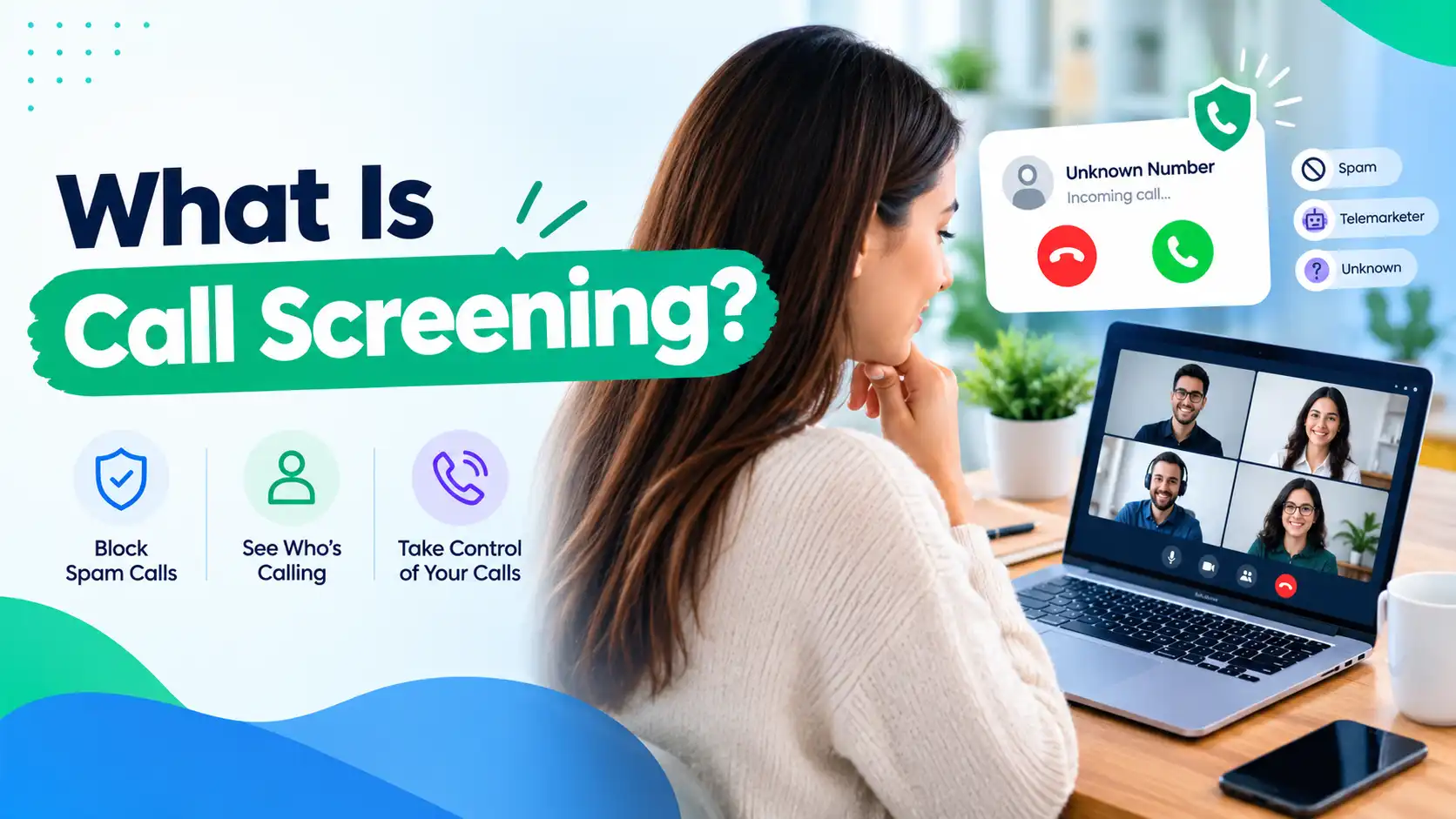
What Is Call Screening? How It Works on Android and iPhone
If your phone has ever silently answered a call, asked the caller why they’re calling, and then rung you with a transcript on the screen, you’ve already experienced call screening.
It’s become one of the most useful features on modern smartphones, and in 2026, it’s no longer just a Pixel exclusive — Apple finally brought real call screening to the iPhone too.
I’ve spent years testing calling and VoIP tools, and one thing hasn’t changed: robocalls and scam calls are still one of the biggest daily annoyances for phone users. Call screening is the most effective built-in answer to that problem, but a lot of people either don’t know it’s turned on, don’t know how to use it, or accidentally activate it and then can’t figure out how to turn it back off.
This guide walks through exactly how phone call screening works, why businesses rely on it, and how to set it up (or shut it off) on iPhone, Google Pixel, and Samsung Galaxy.
How Does Call Screening Work?
At its core, call screening lets your phone check who’s calling — and sometimes why — before it actually rings. Instead of leaving you to guess whether an unknown number is a real person, a delivery driver, or a scammer, the phone (or an AI assistant) answers first, gathers information, and then decides how to handle the call.
There are two main styles of call screening you’ll run into:
i. Automatic Filtering
Your phone checks the number against a spam database and silently declines or redirects calls it flags as likely spam or robocalls, without asking you anything.
ii. Interactive Screening
The phone answers on your behalf, asks the caller to say who they are and why they’re calling, and shows you a live transcript. You then decide whether to pick up, let it go to voicemail, or ignore it entirely.
Why Do Businesses Need Call Screening?
Call screening isn’t just a personal convenience — it’s become a real operational tool for businesses, especially small teams that can’t afford a full-time receptionist. Automated and unwanted calls are a documented problem at scale: the FCC has reported billions of robocalls reaching Americans every month, and a meaningful share of them target small businesses specifically, hoping to catch someone off guard.
Here’s why it matters for a business phone line specifically:
- Time protection: Every spam or robocall a business answers is time taken away from real customers.
- Lead qualification: Call screening can separate serious inquiries from cold sales calls and time-wasters, so staff spend their attention where it counts.
- Professional image: A missed or mishandled call from a real customer can cost a sale. Screening reduces the odds that an important call gets buried under noise.
- After-hours control: Businesses can screen and redirect non-urgent calls outside working hours instead of interrupting staff at night or on weekends.
- Fraud prevention: Many scam calls specifically target business owners and staff, impersonating vendors, banks, or government agencies. Screening adds a layer of protection before anyone on the team engages.
How to Screen Calls?
There are really three ways to screen calls today, and which one makes sense depends on your budget and how much call volume you’re dealing with.
| Method | Description | Pros | Cons |
| Built-in phone features | Use the native call screening tools already on your iPhone or Android device | Free, no setup cost, private | Limited customization, varies by phone brand |
| Hire a receptionist or answering service | A person or outsourced service answers and filters calls for you | Personal touch, handles complex conversations | Costs money, may not scale well for a small budget |
| Call screening apps | Third-party or AI-powered apps like Truecaller, Hiya, or Allô | Customizable, works across phone brands, often includes spam databases | Requires an app install, some features are paid |
For most individuals, the built-in options below are enough. For businesses fielding a high volume of calls, a dedicated app or answering service is usually worth the investment.
i. Call Screening on iPhone
Until 2026, iPhone users only had a blunt option: silence all unknown callers or don’t. iOS 26 changed that by introducing real Call Screening, similar in spirit to what Pixel phones have offered for years.
To set up Call Screening on iPhone:
- Open Settings.
- Scroll down and tap Apps.
- Tap Phone.
- Scroll to the Screen Unknown Callers section.
- Choose one of three options:
- Never — Call Screening is off, and unknown numbers ring normally.
- Ask Reason for Calling — Your iPhone quietly answers unknown calls, asks the caller their name and reason for calling, and shows you a live transcript before deciding whether to ring you.
- Silence — Calls from unsaved numbers are automatically sent to voicemail without ringing, though they’ll still appear in your Recents list.
ii. Call Screening on Google Pixel
Google Pixel phones (Pixel 3 and later) have offered on-device call screening longer than any other major phone brand, and it remains one of the most polished versions available.
To turn on Call Screen on a Pixel phone:
- Open the Phone app.
- Tap the three-dot menu in the top-right corner.
- Select Settings.
- Tap Spam and Call Screen.
- Tap Call Screen and toggle it on.
- Choose how you want spam, robocalls, and unknown numbers handled — automatically screen them, decline robocalls outright, or silently decline spam.
iii. Call Screening on Samsung Galaxy
Samsung takes a slightly different approach than Google and Apple. Rather than one all-in-one “Call Screening” feature, Samsung Galaxy phones (Galaxy S7 and newer) rely on two connected tools: Caller ID and Spam Protection, both of which are powered by Hiya’s spam database built directly into the Samsung Phone app.
To turn on Caller ID and Spam Protection on Samsung:
- Open the Phone app.
- Tap the three-dot menu in the top-right corner.
- Select Settings.
- Scroll down and tap Caller ID and Spam Protection.
- Toggle the switch on (it will turn green).
- Tap Agree or Allow when prompted for permission.
Once enabled, incoming calls from numbers flagged in Hiya’s database will show a warning label before you even answer, letting you make an informed decision without needing to screen the call interactively.
Benefits of Call Screening
Whether you’re using the built-in tools on your phone or a dedicated app, the core benefits stay consistent:
- Fewer interruptions: Spam and robocalls get filtered out before they ever reach you.
- Better decision-making: Seeing who’s calling and why, before you answer, means you’re not guessing.
- Protection from scams: Many phone scams rely on catching people off guard. Screening adds a pause that gives you time to think.
- Improved focus: For remote workers and business owners, fewer random interruptions mean more uninterrupted work time.
- No missed important calls: Unlike simply blocking unknown numbers, screening still lets legitimate calls through, just with an extra verification step first.
FAQs on Call Screening
Q1. How to stop my phone from screening calls?
On iPhone, go to Settings > Apps > Phone > Screen Unknown Callers, and select Never. On Pixel, open the Phone app, go to Settings > Spam and Call Screen, and toggle Call Screen off. On Samsung, go to Phone app > Settings > Caller ID and Spam Protection, and toggle it off.
Q2. Why is my phone screening calls?
This usually happens because a call screening feature was turned on.
Q3. How to turn off phone call screening?
The exact steps depend on your phone brand, but in general: open your Phone app’s settings, look for a section related to Call Screening, Spam Protection, or Screen Unknown Callers, and switch it off or set it to “Never.”
Q4. Is call screening safe?
Yes. Call screening happens either on your device or through your phone’s built-in spam database, and it doesn’t share your personal information with the caller.
Q5. Does call screening work without Wi-Fi?
Yes, in most cases. Google Pixel’s Call Screen feature runs entirely on-device and works without Wi-Fi or mobile data.
Call Screening: Key Takeaways
Call screening has moved from a Pixel-only novelty to a mainstream feature that’s now built into every major phone platform. If you’re on an iPhone, iOS 26 finally brings a real “ask reason for calling” experience to match what Pixel users have had for years.
If you’re on Android, Pixel offers the most advanced built-in option, while Samsung leans on Hiya’s spam database for a simpler, warning-label approach.
For personal use, the free, built-in tools on your phone are usually enough to cut down on spam and robocalls significantly.
For businesses fielding a higher volume of calls, pairing native call screening with a dedicated app or answering service gives you both spam protection and better lead qualification, without adding to your team’s daily workload.
Read More : How to Find the Owner of a VoIP Number? 9 Safe Lookup Methods (2026)